Adding videos into the Video Library
To add videos to the Video Library, select Add Videos > Upload from the left menu:
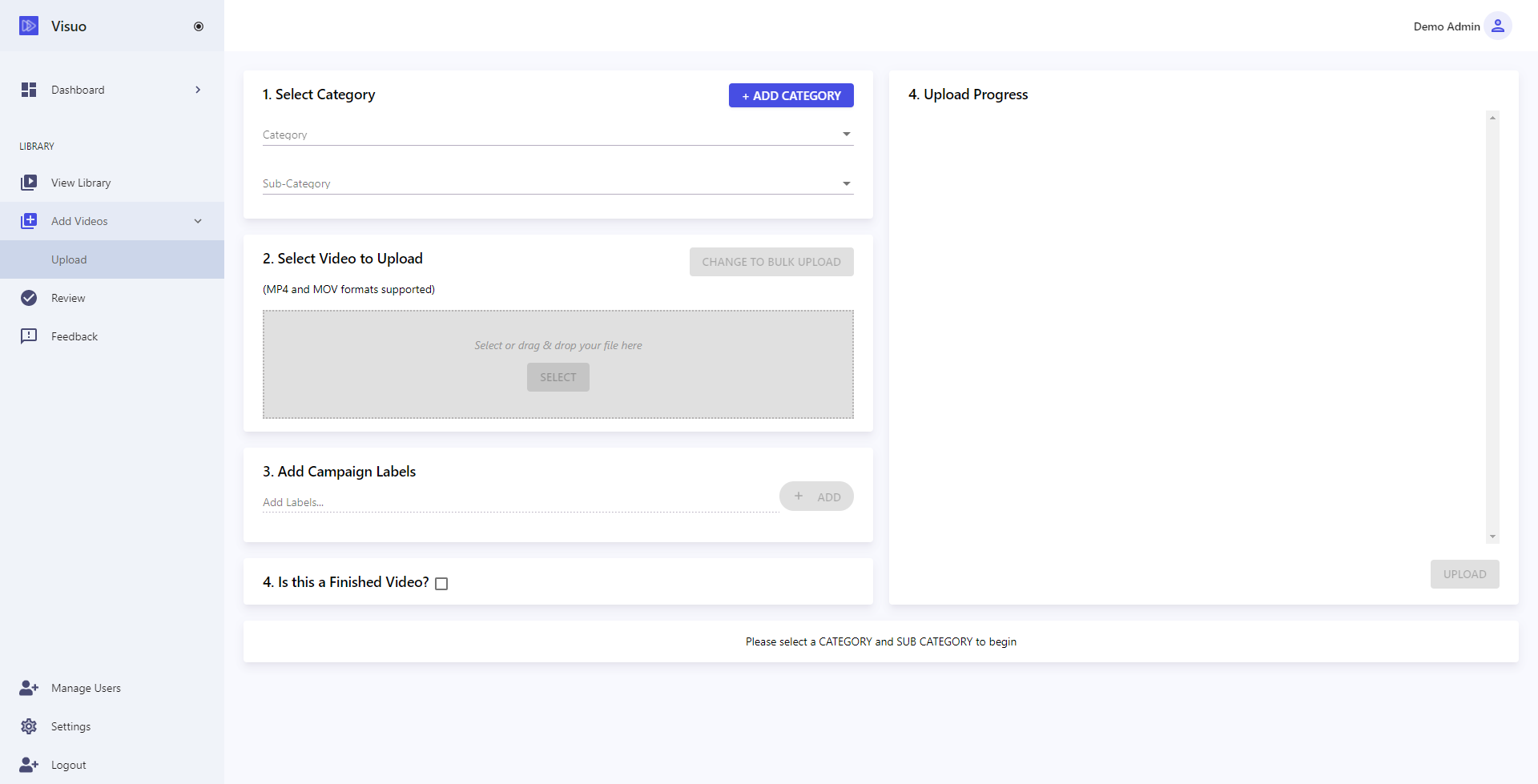
To add a video, or set of videos, please complete the following steps:
- Select the category or sub-category that you want to upload the videos into. If the desired category or sub-category doesn't exist you can create new categories or sub-categories via the Add Category or Add Sub-Category buttons
- Next, press Select which will open up a dialogue box to select the video you wish to upload. If you want to upload a number of related videos at once, press Change to Bulk Upload which will allow you select the folder containing the videos you wish to upload (Note: Every video with an acceptable format in the selected will be uploaded)
- Add campaign label(s). These are unique identifiers understandable only to you and / or your team, to help you identify any videos from a specific campaign, e.g. "Christmas Promo 2018". These can help you quickly identify and find specific videos that you are looking for
- If the video is a finished or completed video, i.e. it is the final product and not source footage, tick the checkbox to mark it as such. This helps to ensure any finished videos are processed correctly through the workflows in the Video Library
- Finally, press the Upload button to begin the upload. If you are doing a bulk upload, we recommend keeping your browser on the page, as moving to another page may potentially interrupt the upload process on some browsers
Once your video(s) have been uploaded, they will begin being processed through our workflow. Once completed, you will be able to find the videos in View Library.