Viewing the Video Library
To view the videos in your Video Library, select View Library on the left menu:
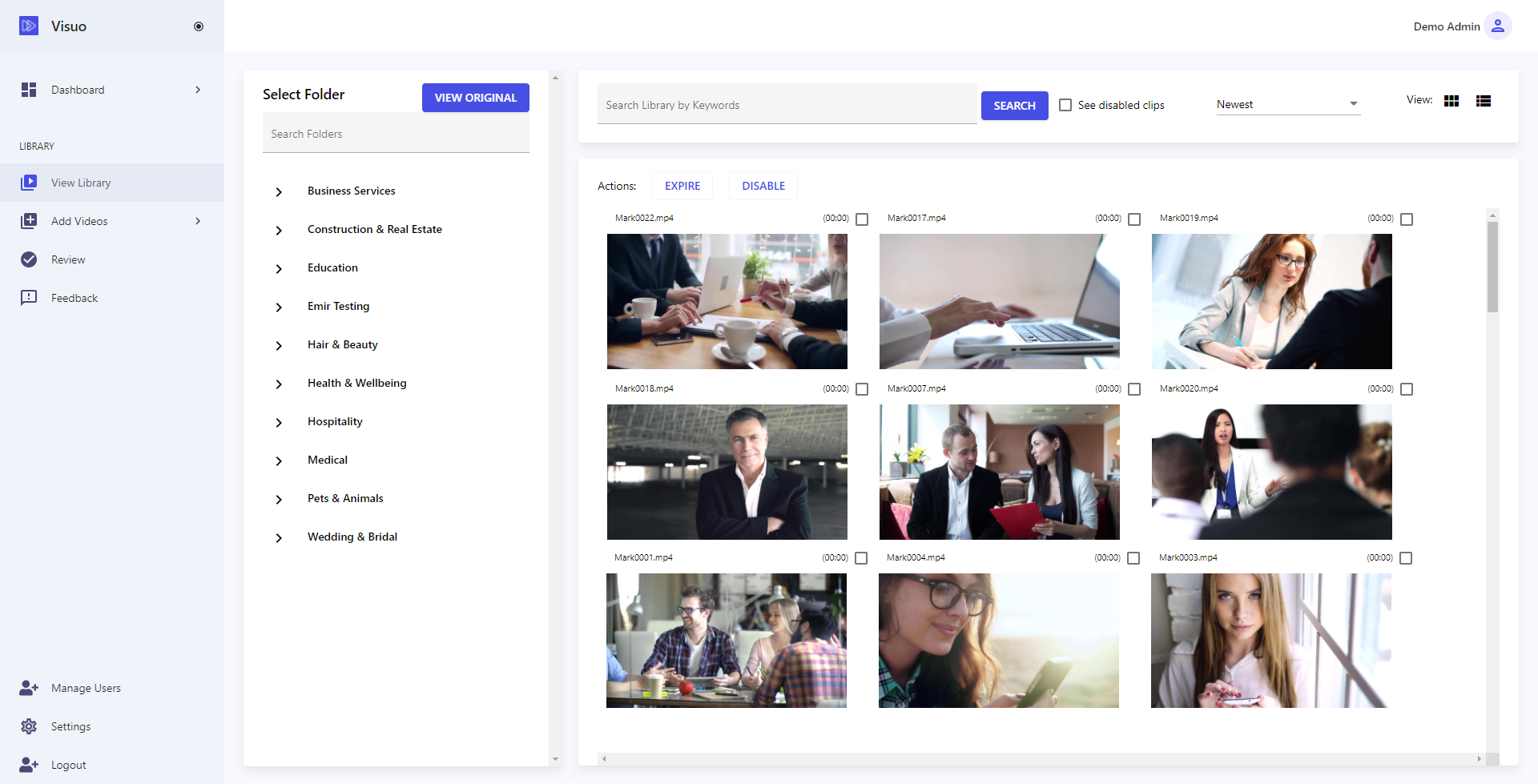
This is where you will see all of your approved / processed videos ready to use, and organised by the categories that were set up when the content was uploaded. You can click on any category to expand it and see the list of sub-categories underneath it. Sorting by these categories helps to keep your videos organised and easier to find:
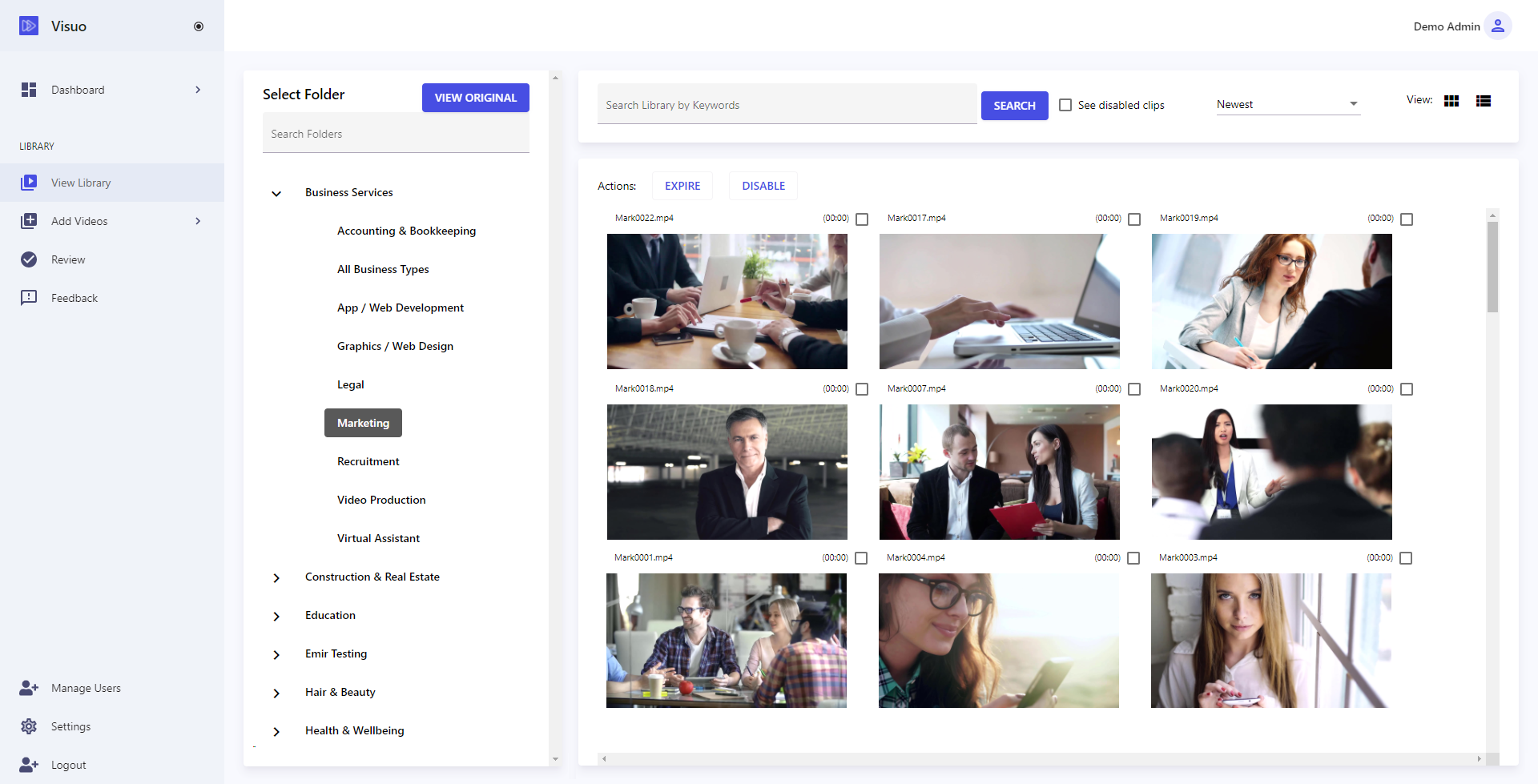
You will also see the search bar at the top where you can search your videos via keywords, as well as change the sort order of the view, see clips that have been disabled for access (in keeping with any licensing arrangements), as well as switch between List or Grid views.
Double-clicking on any particular video will open up a modal for that video where you can, 1) watch the video, 2) see it's attributes (e.g. duration, status, tags, etc.), 3) enable / disable it for access (or set an expiry date), and 4) download the video:
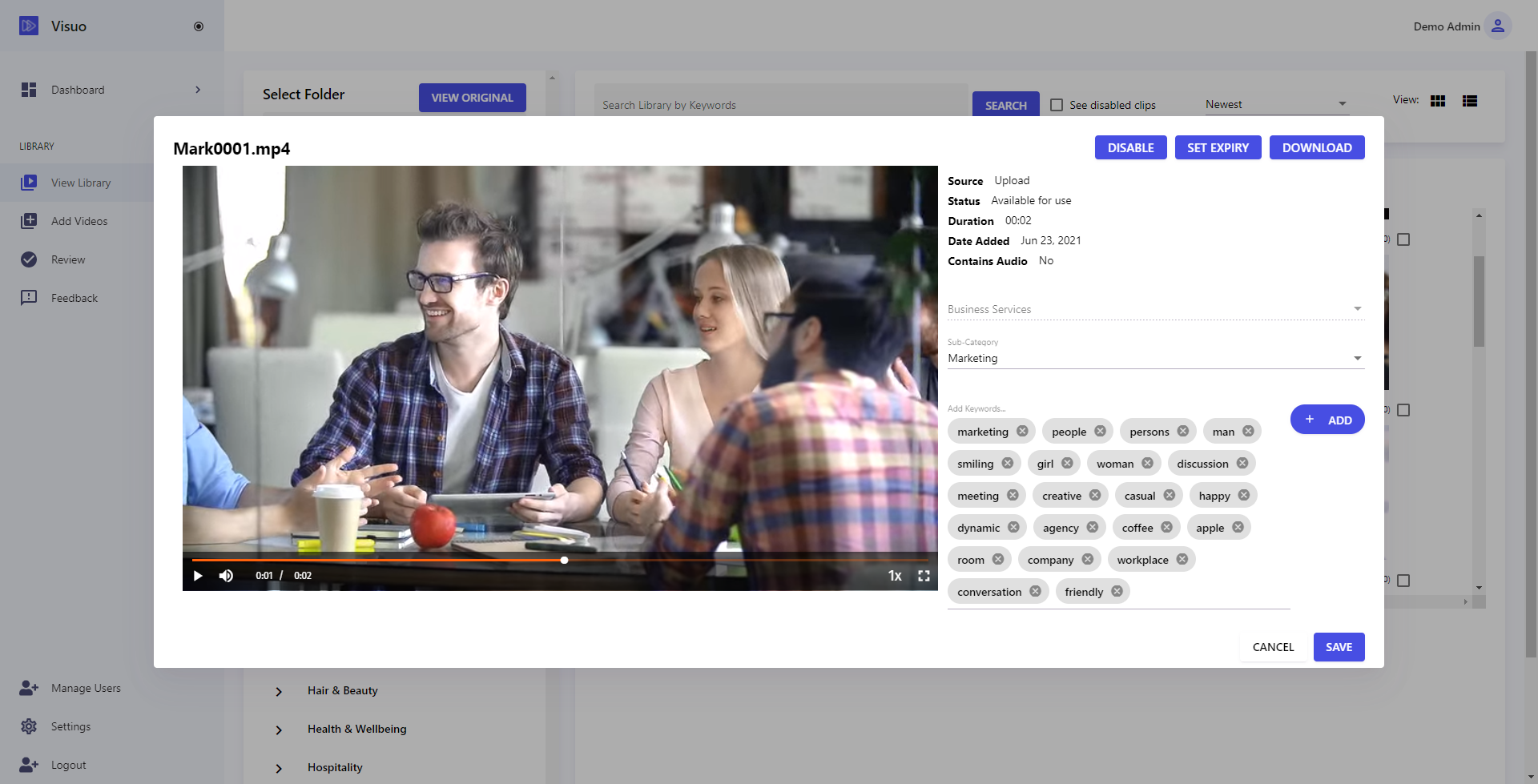
From time to time, you might also find the need to edit the attributes of a particular video, e.g. update the tags or reassign it to different category. You can do this from this screen. Just make the adjustments, then press Save to update your changes.