Roles & adding / managing users
To protect the assets from being improperly accessed, we have designed access to the Video Library to be invitation-only, with control only available to the Administrators of your account.
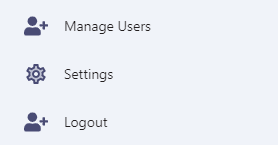
To add users to your account, select Manage Users from the left menu:
From this screen, you can see the list of existing users in your account:
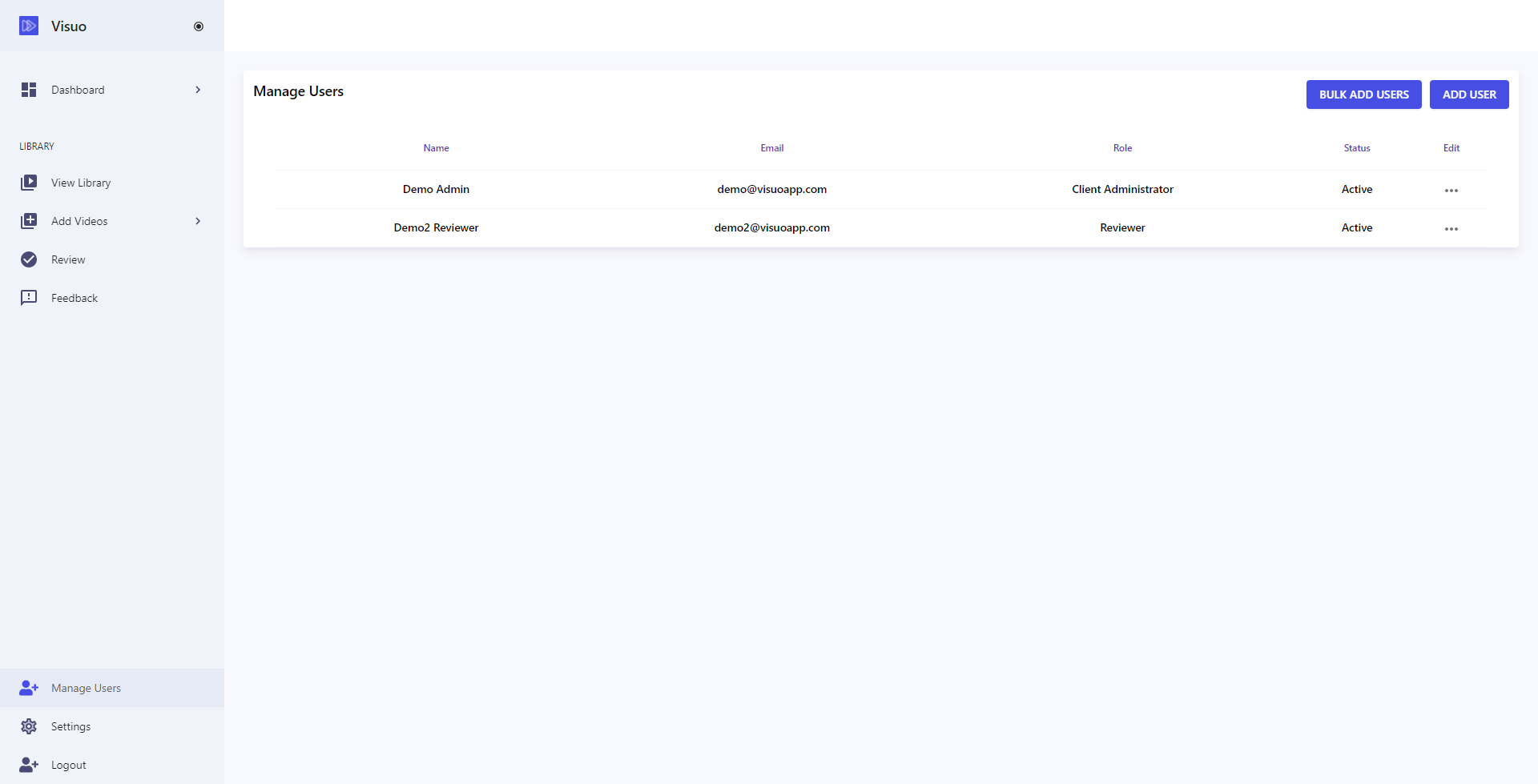
To add a new user, click on the Add User button in the top-right corner of the window. This will open the following modal where you can add a new user:
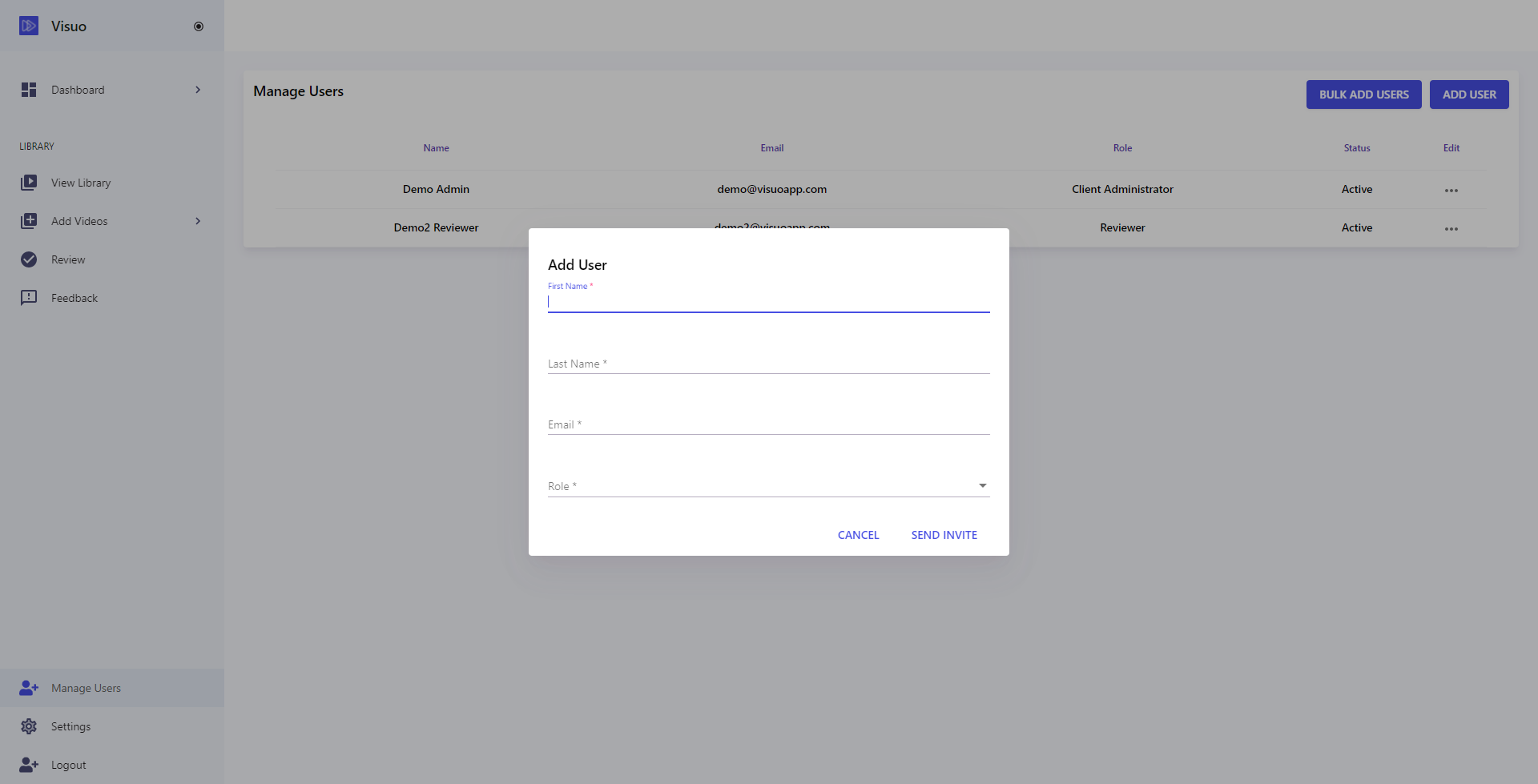
Enter the details of the new user - First Name, Last Name, Email - and then select the desired role. When ready, press Send Invite and a verification email will be sent to them to verify their account. Once verified, their account is ready to use.
User Roles & Permissions
In the Video Library, there are a number of roles available that you can assign to your users. Here's a summary of what each role can do, and who it is suitable for:
| Role |
Description |
Manage Users |
Upload Content |
Review Content |
View / Download Content |
|---|---|---|---|---|---|
| Administrator |
Account administrator. Has access to all features in the account. Note: Only 2 Administrator accounts are available as part of each account for security purposes. |
Y |
Y |
Y |
Y |
| Reviewer |
Same as Administrator, but restricted from managing users of the account. |
- |
Y |
Y |
Y |
| Provider |
This role type is best used for 3rd party providers and/or contractors whom you wish to have access to upload content into your library, but not be able to access / download content from it |
- |
Y |
- |
- |
If you are unsure of which role to use and / or have unique requirements, please contact us for a discussion.